Picture this: you're on your phone, thrilled to share some exciting news with your friend. But an error message says 'Not Registered on Network'. How frustrating must that be?
Not only does this prevent you from sending your friend that text message, but it also restricts your phone from connecting to the mobile network. And as you can imagine, this can be quite disruptive. In this scenario, it's easy to feel helpless – so one raises the question: what can I do?
Whether it's your first time encountering this lack of connectivity or a recurring issue that you've been dying to solve, the good part is that this can be fixed in most cases. In this article, we'll delve into the details of solving the 'Not Registered on Network' issue – covering the basics to exploring the quick and easy fixes. That way, you can get your phone up and running in no time.
What's the 'Not Registered on Network' Issue, Why Does It Happen?

When you encounter the 'Not Registered on Network' issue, your access to your mobile network is blocked. This hinders you from sending messages, making calls, and even accessing the Internet through cellular data.
The possible reasons why you may be facing this issue vary greatly. It could just be a simple issue in your settings, or it could be network disruptions with your mobile carrier. Here's why this issue can happen:
Out-of-Date Software
When was the last time you updated your phone? In our busy lives, we sometimes ignore major update notifications. And when these notifications pile up, your phone becomes out of date – which might mean that you will no longer be able to access some critical features, mobile network connection included.
Damaged SIM Card
Another reason why you might be encountering this issue is due to a damaged SIM card. For most of us, we leave our SIM cards untouched in our devices. If that's the case, then why does it happen?
It's quite simple. Think of the last time you dropped your phone – that could be one reason why you're facing this issue. And it's not just limited to that.
Dropping your phone in a puddle of water or placing your phone directly under sunlight could be other possibilities for why this can occur. So just because your SIM card is safely stored inside your phone, doesn't necessarily mean that it's safe.
Wrong Carrier in Settings
If you're facing this issue, the main reason can be as simple as selecting the incorrect carrier in your settings. One example of when this can happen is when you have roaming activated.
For instance, your phone might connect to a different carrier's network while you're traveling. When you come back home, there's a chance that your phone fails to switch back to your primary carrier, which results in your phone selecting the wrong carrier.
Network Disruptions
Some issues are totally out of our control, like when mobile networks are experiencing an outage. Although rare, these typically occur when a carrier encounters network failures or network congestion.
In this case, it helps to stay up to date with your mobile carrier's websites and social media channels in the event that they report an outage.
How to Fix the 'Not Registered on Network' Issue
Now that we've covered the whys, let's uncover the hows of fixing this issue. Note that there's no one-size-fits-all approach to solving this connectivity problem. Hence, it may take one or even multiple solutions before your phone can successfully connect to your mobile carrier.
Fortunately, there are several fixes you can experiment with. And the best part is that some of them can just take a few minutes! Let's get tinkering:
#1. Restart Your Phone

There's a reason why this solution is highly recommended, regardless of what issue you might be facing with your phone. Resetting your phone allows your phone to start from a clean slate, easily solving issues from the minor to the major ones. This may include your phone connectivity issue.
Restarting your phone is quite simple. Most Android phones are restarted by holding the power button, while some will require you to hold the power button and volume down button simultaneously. If it's your first time restarting your phone, browse through your phone model's user manual for further instructions.
Once you're done with this, a screen appears asking you to select 'Restart' or 'Power Off'. Select 'Restart' and just leave your phone to do all the work before it turns back on.
#2. Turn Airplane Mode On and Then Off

There might even be a quicker fix to restarting your phone – turning on and then turning off airplane mode. When you activate flight mode, your phone is prevented from connecting to any network. All you have to do is follow these quick and easy steps:
- Swipe down from the top of your phone's screen to access shortcuts.
- Locate the Airplane Mode icon and turn it on.
- Leave it on for at least 30 seconds and turn it off again.
Sometimes, our devices just need a quick reset. Following this method allows your phone to make a “fresh” connection to a mobile network.
#3. Update Your Phone's Software
To free your phone from bugs, try updating your device to the latest software. A software update not only fills the security gaps your phone may have but also fixes critical issues. To update your outdated software, follow the steps below:

- Connect your phone to a WiFi network.
- Open your phone's Settings app.
- Look for a System or About phone option.
- Select System Update.
If an update is available, then your phone is out of date. Once you've downloaded the update, proceed with the installation.
#4. Select Your Network Manually
If the past few steps haven't worked, a manual selection of your mobile network might do the trick. While most phones do this for you automatically, your device can't always do this perfectly. To perform a manual selection, just follow these steps.
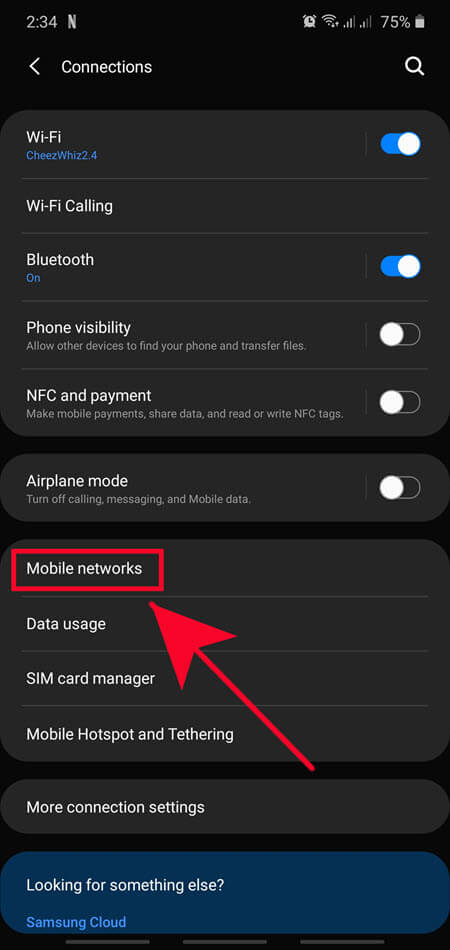
- Launch your phone's Settings app.
- Open Connections or something similar.
- Proceed to Mobile Connections and select Mobile Operators.
- Tap Search Now to manually search for a network.
#5. Contact Your Mobile Carrier

A possible remedy to your issue is to contact your mobile carrier. There are many things they can do to solve the issue, from verifying that everything in your account is in order to resolve any issues related to your SIM card. Remember that your carrier is your key contact for network-related matters, so don't hesitate to reach out to them.
#6. Try Using a Different SIM Card

It's possible that the issue lies in a defective SIM card. In that instance, you're better off trying out another active SIM card to ascertain whether the issue is specific to your current SIM card.
- Pop open the SIM card tray with an ejector and pull out the tray containing the SIM card.
- Replace your current SIM card with another active one and push the tray back.
- Observe if your phone has reception.
If your phone detects that another active SIM card can connect to your mobile network, then your previous SIM card could have been the issue. Only a replacement of the faulty SIM card will solve the problem.
Note that trying out this method won't work for everyone, particularly for owners of carrier-locked phones. Attempting to try out this solution with an incompatible SIM card won't resolve the connectivity issue. In case your phone is locked, refer to the next section on phone unlock.
Bonus: How to Unlock a Phone From Network Lock
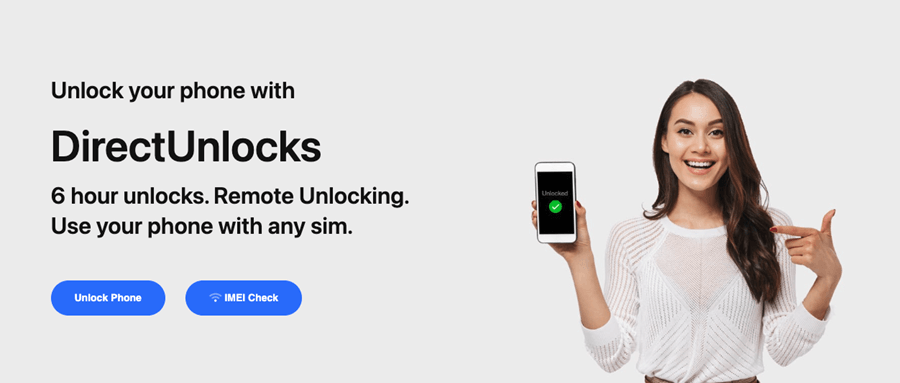
If your phone is restricted to a specific carrier, your best bet is to unlock it. DirectUnlocks will be your best choice when it comes to phone unlock.
When unlocking your phone with DirectUnlocks, you can unlock in a matter of a few hours, sparing you from the lengthy process of contacting your carrier.
DirectUnlocks is completely legal and approved by phone manufacturers and network carriers across the globe.
Features of DirectUnlocks
Permanently Unlock Your Phone
There are two types of phone unlocking: temporary and permanent. DirectUnlocks focuses on the latter, so you don't have to worry about your phone ever being restricted to a single carrier again.
Live Order Tracking
You won't be left in the dark throughout the whole unlocking process because DirectUnlocks allows you to track your device's unlocking progress. Once it's good to go, you'll receive a notification via SMS or email.
Remote Unlocking
One of the key advantages of DirectUnlocks is its ability to unlock your phone remotely. There's no need to visit a physical store or send your device via mail – all you need is to follow a few simple steps.
Steps to Unlock Your Device Through DirectUnlocks
By following these 3 easy steps, you can unlock your device through DirectUnlocks in no time:
Unlock Your Phone Now
- Select your phone's mobile network and input your IMEI number. To check your phone's IMEI number, dial *#06#.
- Once you're done with your payment, the unlocking process will commence. Make use of their live tracker to track your phone's progress.
- When your device is unlocked, you'll receive a notification through email or SMS.
Final Thoughts
Solving your connectivity issue shouldn't be as complex as rocket science, nor should it require an excessive amount of steps. By following these straightforward solutions, you can successfully overcome the 'Not Registered on Network' issue.
You May Like