Are you always met with the "SIM Invalid" message when you try using a different SIM card on your phone? Are you unable to send messages, make calls or use cellular data when you switch SIM cards?
Well, these issues are caused by a very simple modification: a network lock. Until the network lock is removed, your phone will only accept the SIM card that you've been using. In this article, we'll discuss "network lock" in depth. We'll see what it means, how to check if your phone is "network locked", and the various options you can use to remove it. Keep on reading!
What is a Network Lock?
A network lock, commonly known as a SIM lock, is software modification network providers install on phones to ensure that the phones only work on networks the provider allows.
Network providers are known to sell smartphones at lower prices to customers willing to use the network for a specified period, usually up to three years. To ensure you hold your end of the deal, your phone will be modified to only support the provider's network.
This modification is removable, and the official method of removing it is to return it to the network carrier that installed it. The network carrier, of course, has conditions that every phone they sell must meet before they can unlock it to support other networks.
How to Confirm if Your Phone is Network Locked
If you bought the phone from a network provider, then you can bet that it's locked, and this section of the article may not be helpful. However, what if you bought a used phone? What if the phone was handed down to you? Since you can't tell if a phone is network locked by just looking at it, here are a few methods you can use:
Method 1. Use Another Carrier's SIM Card
The first method you can employ to confirm if your phone is locked is to try using a SIM card other than your carrier's. Network-locked phones modified to only support the carrier's network(s). If your phone does not support the new SIM card, i.e., you can't make calls, send text messages or use cellular data, then your phone is network locked.
Don't worry if you don't have another carrier's SIM card to try this method. See methods 2 and 3.
Method 2. Check the Settings
All the information you need about your phone can be found in the settings app. To check if your phone is network locked,
iPhones
On iPhones;
Step 1: Open the Settings app
Step 2: Tap the General menu
Step 3: Tap the About menu.
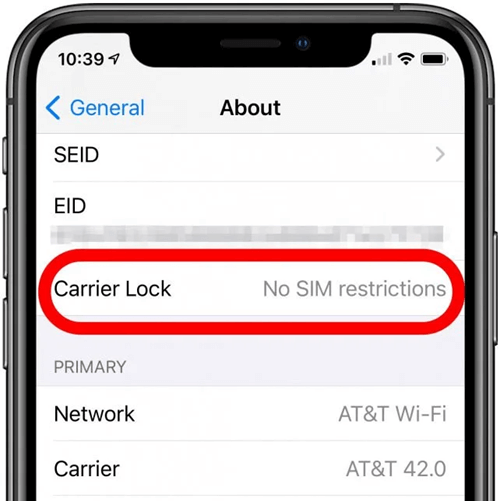
You'll find various information on the About page. Look for "Carrier Lock" information. If it reads anything other than "No SIM Restrictions", as shown below, then your phone is probably network locked.
Android phones
Checking if an Android phone is network locked is quite different and may vary depending on the brand. However, a standard method of checking for network lock is:
Step 1: Open the phone's Settings app.
Step 2: Tap the Connections, Wireless & Networks, Network & Internet, or something similar.
Step 3: Tap Mobile Networks, Cellular Networks, or something similar.
Step 4: Tap Advanced (if available), then Choose Network, Carrier, Automatically Select Network.
Step 5: Disable the auto-scan, then choose the manual scan. If only one (your carrier) appears as the only option, your phone is probably locked.
Method 3. Use an IMEI Checker
The last method is to use an IMEI checker. These are online services that return your device's information. These services return information such as serial number, model, carrier/network lock, iCloud status, etc.
Please note that using another carrier's SIM card is the most secure way of confirming your phone's network lock status. Methods 2 and 3 can be modified: phone's settings can be changed, especially if it's a used phone and most IMEI checkers can't be trusted. They'll only display what you want to see.
How to Remove Network Lock from a Phone
As stated earlier, your phone will only support another carrier's SIM cards if it's unlocked. The official way to unlock a phone is to go through the network carrier, which involves ticking a whole list of requirements. The good news is we've found alternative methods you can use to achieve the same results. Check them below:
Method 1. Using DirectUnlocks
The simplest solution is always the best, and that's what places DirectUnlocks at the top of our list. DirectUnlocks is an easy-to-use network unlocking service that conveniently removes network locks from all phone brands and models, regardless of the network provider.

With DirectUnlocks:
- You'll unlock your phone in a span of minutes
- You don't need any technical knowledge
- You'll keep and use your phone as usual while it's unlocked.
- Your phone's warranty will not be voided.
- Your phone will be permanently unlocked.
- You'll receive an Apple and carrier-approved unlocking service.
How to Remove Network Lock Using DirectUnlocks.
Network lock removal using DirectUnlocks is pretty easy; 6 steps, and you're done.
Step 1: Find your Phone's IMEI number. You can do this by:
Option 1: Dial *#06#. You'll see your phone's IMEI number displayed on the screen.
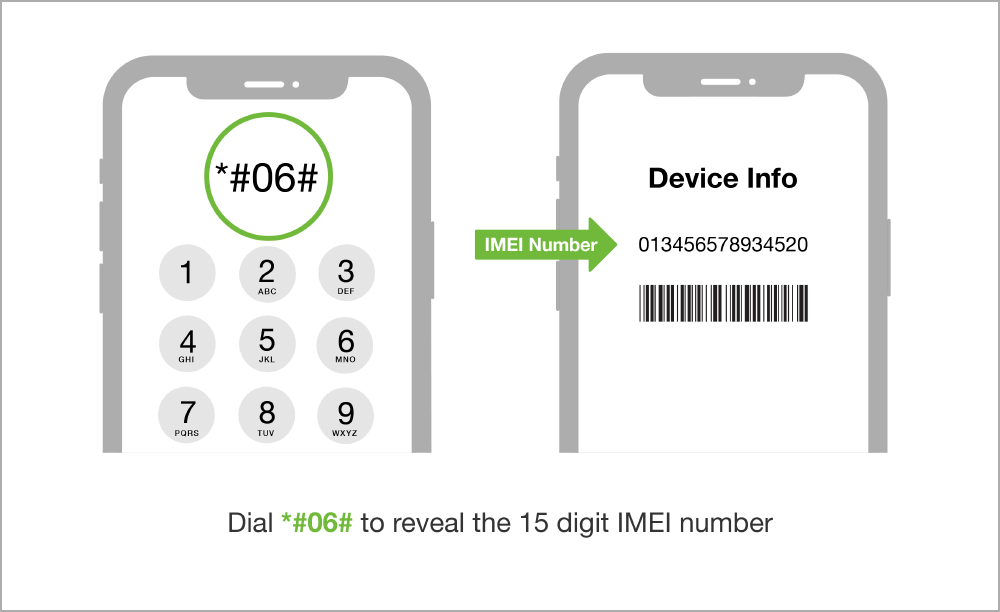
Option 2: On iPhones, go to Settings > General > About. On Android, go to Settings > System > About phone/device or Settings > About phone/device.
Step 2: Select your country and your network provider from the drop-down. When prompted, enter your phone's IMEI number and then select your phone's brand.
Provide Your IMEI
Step 3: Click the "Unlock for Any SIM Card" button.
Step 4: On the next page, agree to the terms of service, then click the "Pay With Debit/Credit Card" button.
Step 5: Enter your card details on the pop-up that appears, then click the "Pay with Card" button.
And you're done. DirectUnlocks will verify the details provided and then process your order. You'll receive a confirmation message once the process is done.
Method 2. Using ExpressUnlocks
Another easy-to-use network removal service is ExpressUnlocks. Like DirectUnlocks, this service is entirely online, does not require downloads and installations, uses IMEI numbers to unlock phones, and supports all major network providers.
How to remove network lock using ExpressUnlocks
Step 1: Find your phone's IMEI number. Use the options highlighted in Method 1.
Step 2: Select your country and the network carrier from the drop-down options, enter your phone's IMEI number and then select your phone's brand.
Step 3: On the next page, check the box to agree to ExpressUnlocks' terms of service, then click the “Pay With Debit/Credit Card” button.
Step 4: On the next page, enter your card details to complete your order
ExpressUnlocks will verify the details provided and then process your order. You'll receive a notification once your phone is unlocked.
Method 3. Using MobileUnlocks
Are you looking for another fully online network removal service? Try MobileUnlocks. This simple tool works similarly to DirectUnlocks and ExpressUnlocks.
MobileUnlocks supports all network carriers, so don't worry about the network carrier your phone is locked to. This is an excellent substitute considering that network lock removals average 15 minutes or less.
Method 4. Use a Software Solution
If you're tech-savvy and want to be involved in the network lock removal process, then go with software solutions. You'll download the tool, install and set it up on your computer, and then perform the step-by-step process of removing the network lock from your phone.
Several such software exists online, so ensure you pick the one that will do the job. Online reviews will provide you with enough information to decide.
Cons of Software Solutions
Even though they have been reported to work, there are still concerns about using such tools. Some known disadvantages of using such tools to remove the network lock from your phone include the following:
- They are expensive.
- They can only work for iPhone 5s - iPhone X.
- No guarantee that they will unlock your phone.
- Does not work with all OS versions. Most of them only support iOS 12 - iOS 14.8
- They sometimes result in data loss
- Not a permanent solution - your phone will be locked again if it's reset.
- They will jailbreak your iPhone.
Final Words
A network lock will have you tied down to one carrier even when you no longer enjoy the tempting offers and deals that attracted you in the first place. When this happens, your only way out is to remove it. When ready to leave your carrier, ensure you pick straightforward, affordable, and permanent network removal tools like DirectUnlocks.